Implementation Elements
The site elements that drive visualiser engagement.
These elements can be used individually, but the most successful deployments combine multiple elements across the customer journey.
1. Navigation Bar Buttons (Desktop & Mobile)
Purpose: Persistent visibility and easy access.
Adding a "Visualise" or "Visualise at Home" button to your main navigation ensures customers always know the feature exists.
We recommend context-driven language such as:
- ✔ "Visualise in Your Home"
- ✔ "Upload Your Photo"
- ✔ "See It in Your Space"
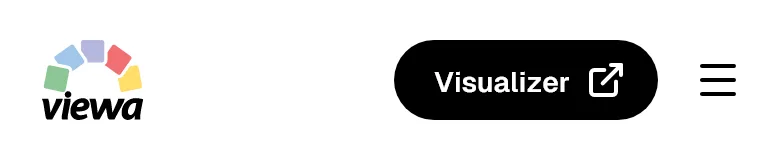
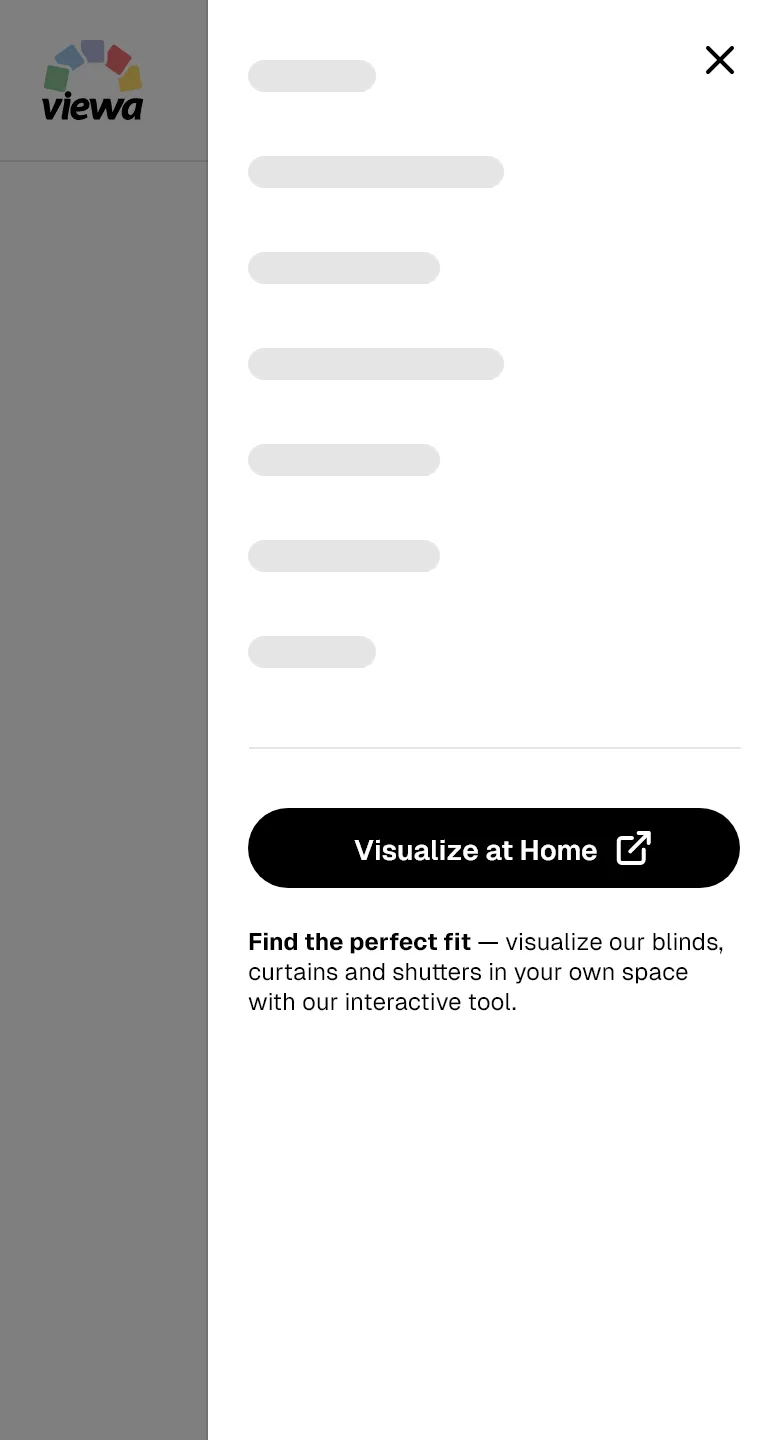
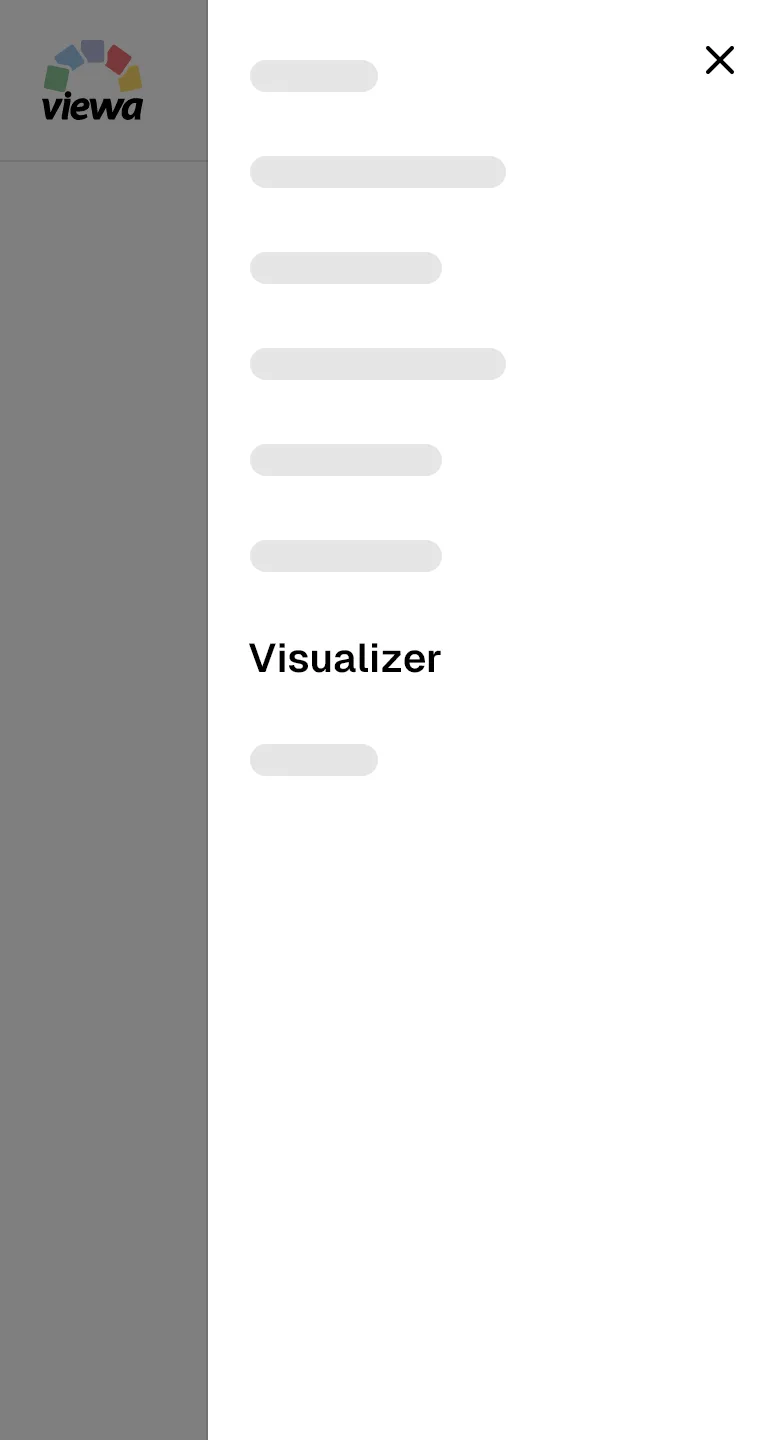
On mobile, this can appear:
- As a header button
- Within the navigation drawer
- With supporting descriptive text
Best practice: trigger a contextual popover or link to a dedicated landing page rather than launching directly without explanation.
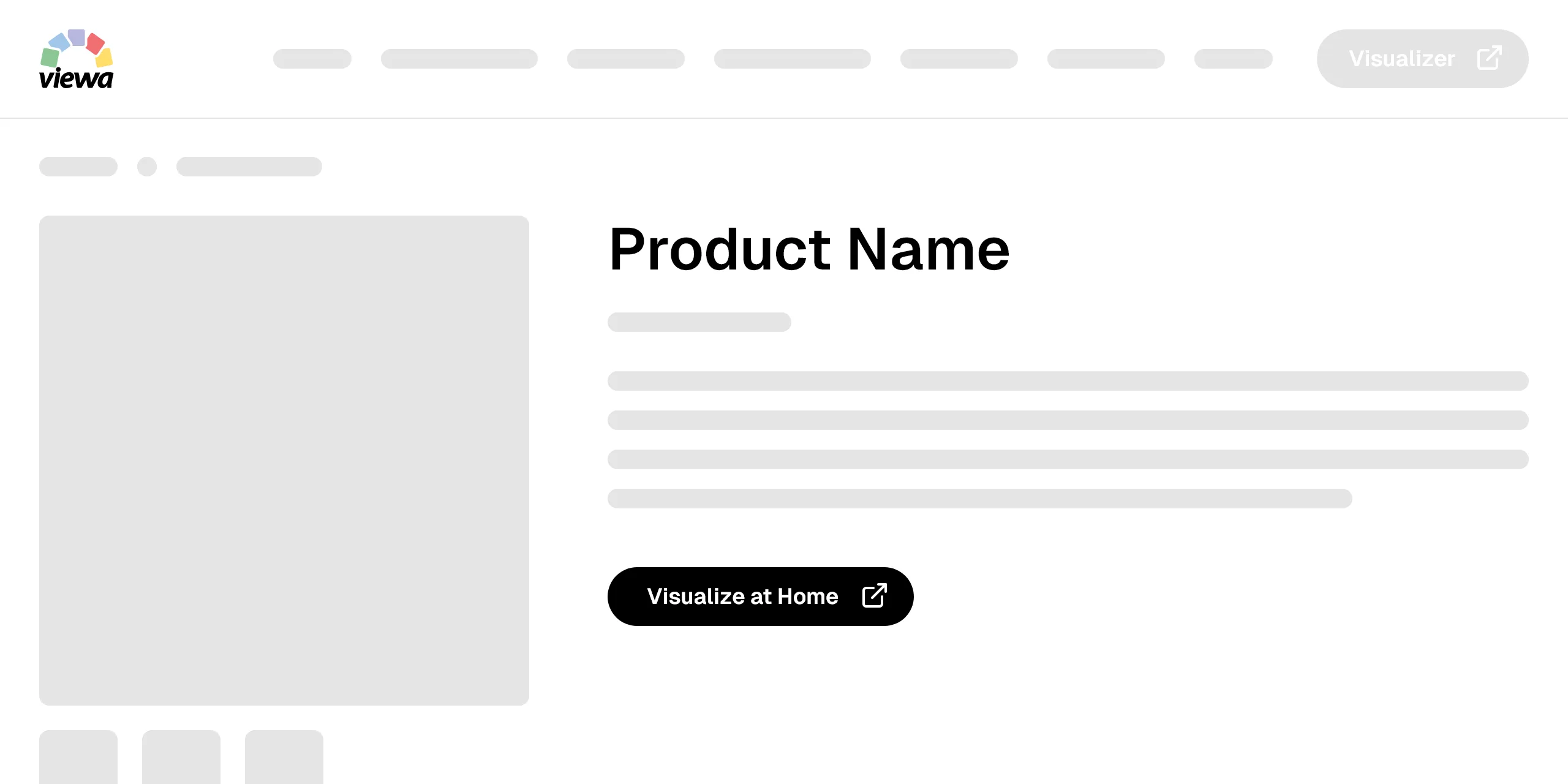
Desktop examples



Mobile examples
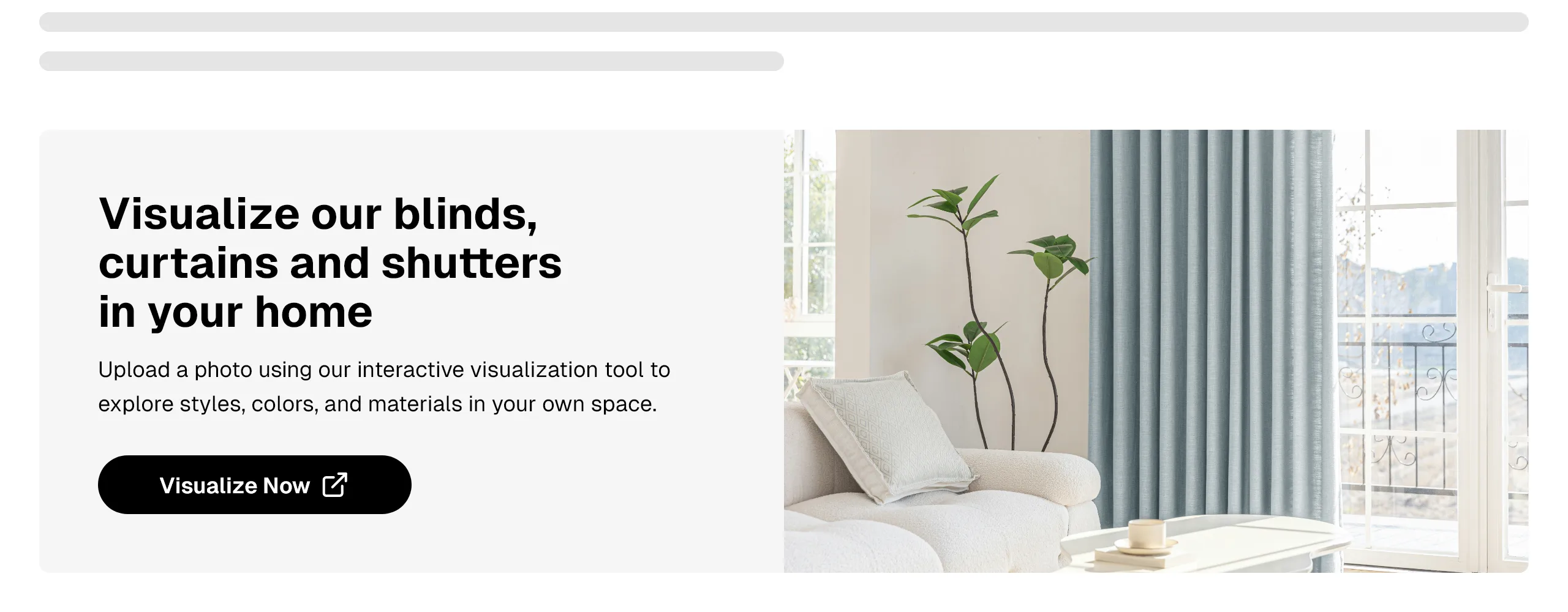
2. Contextual CTA Banners
Purpose: Educate before action.
Feature banners on key pages (homepage, category pages, product collections) help explain:
- What the tool does
- That users can upload their own photo
- What they will be able to customise
Example copy:
Upload a photo of your room to explore styles, colours and materials in your own space.
These banners significantly improve click-through rates compared to standalone buttons.

3. Popovers & Intro Modals
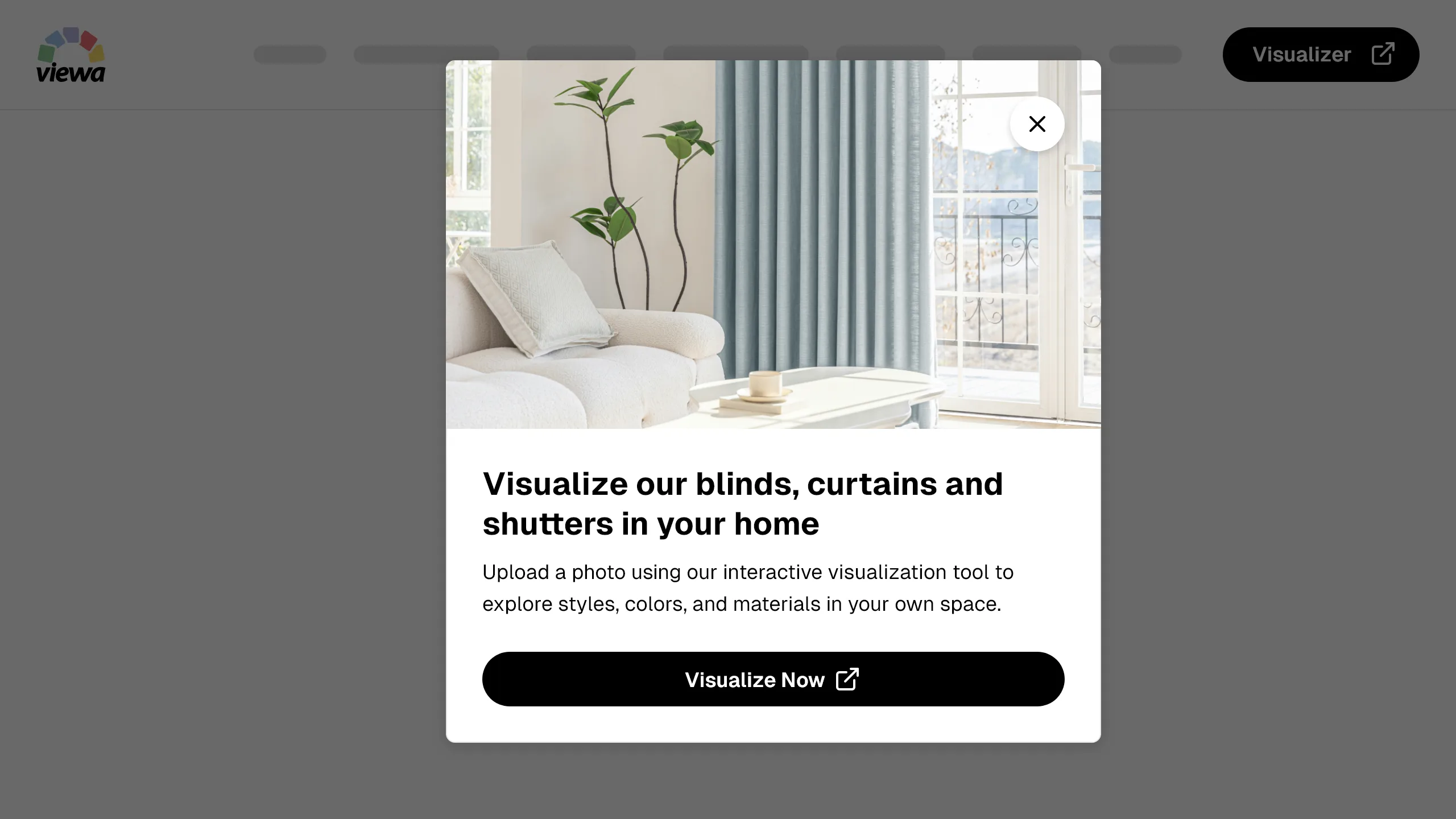
Purpose: Provide immediate clarity.
Instead of linking directly to the visualiser, a popover can:
- Explain how it works
- Show a preview image
- Outline the 3-step process (Upload → Select Area → Customise)
- Reinforce that the experience works on mobile
Popovers can be:
- Manually triggered via navigation
- Automatically shown to first-time visitors
This approach reduces user hesitation and increases launch confidence.
4. Dedicated Landing Page
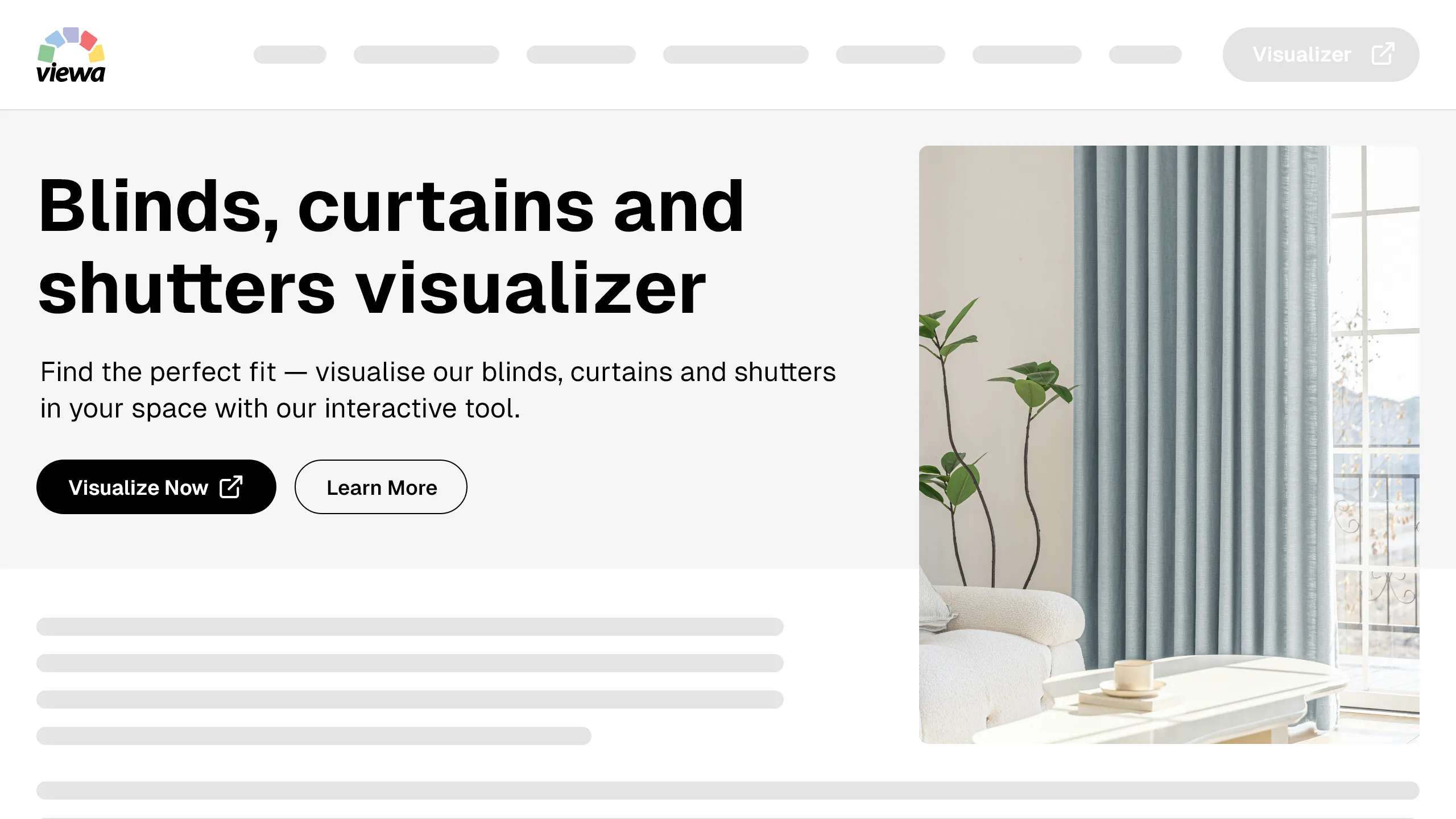
Purpose: Fully prepare the user before launch.
A dedicated landing page is one of the most effective implementation approaches. It allows you to:
- Explain how the visualiser works
- Showcase screenshots or video walkthroughs
- Highlight benefits (confidence, decision-making, faster selection)
- Improve SEO around terms relevant to your products (for example "blinds visualiser" or "see blinds in my room")
This page should clearly communicate:
- Upload your own photo
- Select your area
- Explore finishes and styles instantly
Include strong CTA buttons such as:
- Visualise in Your Home
- Upload Your Photo Now
This page can be linked from navigation, banners and product pages.
5. Product Page "Visualise" Buttons
Purpose: Increase enquiry confidence and lead quality.
The goal of the visualiser is often not immediate purchase — it is to help customers feel confident enough to submit an enquiry.
Adding a "Visualise in Your Home" button directly on product detail pages allows users to preview the exact product they are considering before contacting your team.